Luxafor integration with Google Calendar
This guide explains how to integrate your Luxafor device with Google Calendar using the Luxafor app. By connecting your calendar, you can have your Luxafor light automatically display the status of your events and receive visual reminders for upcoming events.
1. Sign in to Google Calendar
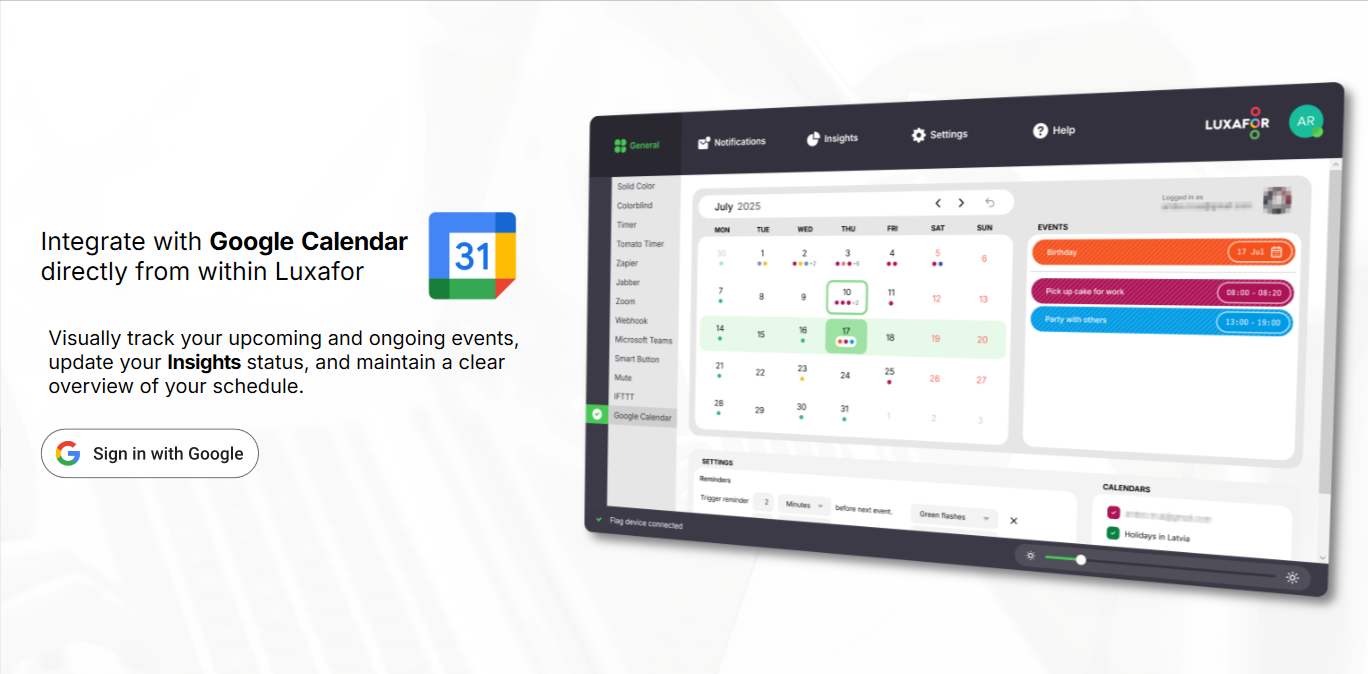
1. Go to the Google Calendar tab in the Luxafor app and click Sign in with Google.
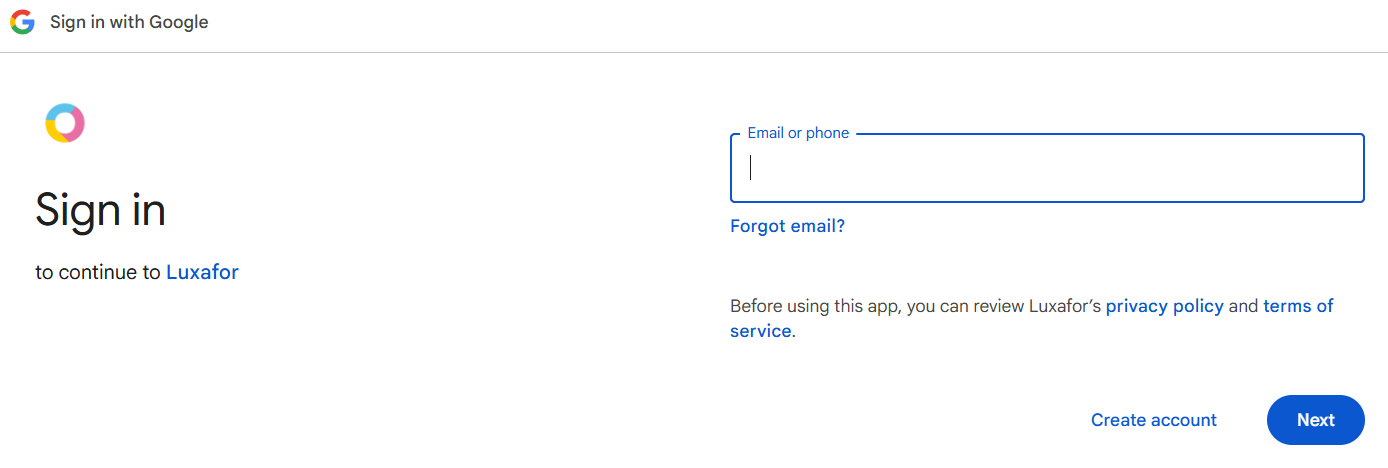
2. Log in to the Google account you want to sync with Luxafor.
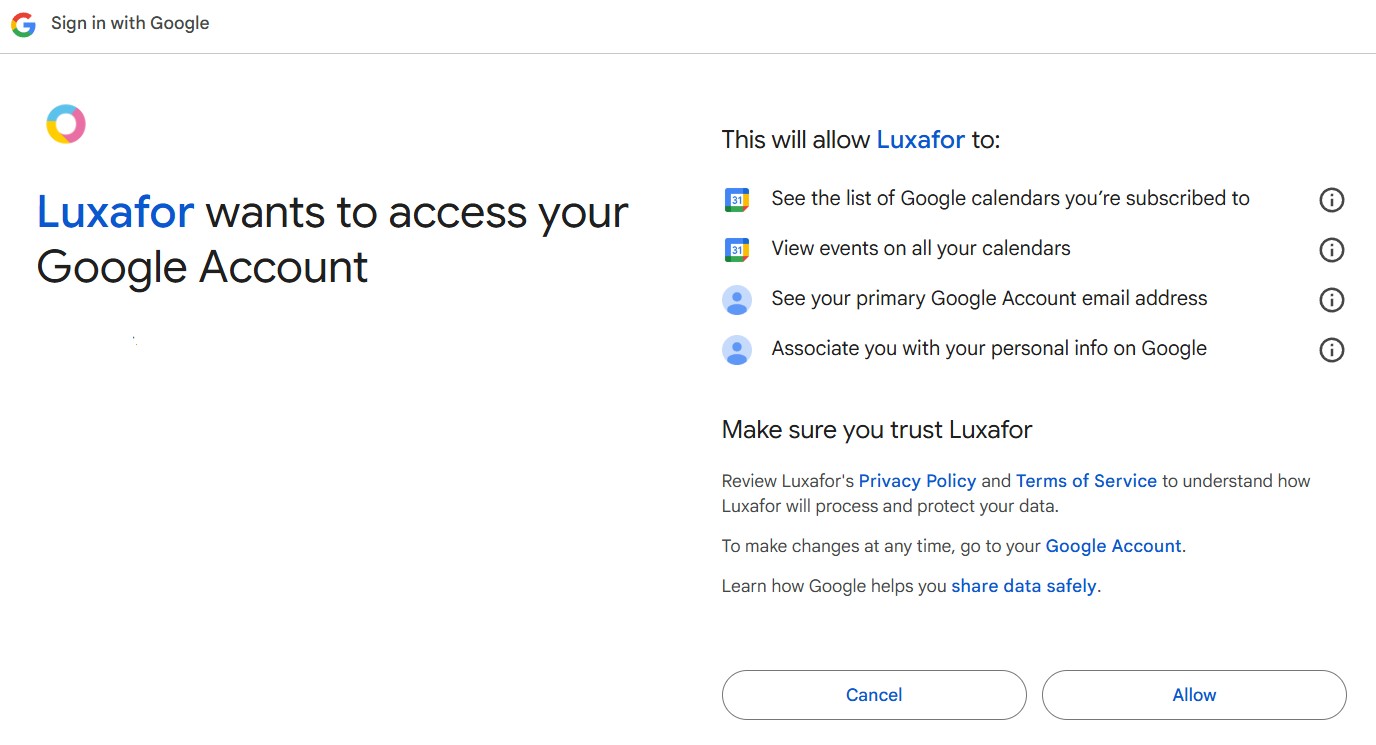
3. Allow Luxafor to access your Google account.
4. Configure the settings to your preferences and use the integration with any Luxafor product connected to the app.
2. Configuring Settings
Reminders
Add reminders to notify you before an event starts. Choose how long before the event you want to be notified and select the notification pattern. To add multiple reminders, click ’Add reminder’. To delete a reminder, click the ’X’ next to it.

Behavior
Choose the colors your Luxafor busy light will display once an event starts.

Use event colors
The busy light will display the color assigned to the event in your Google Calendar.
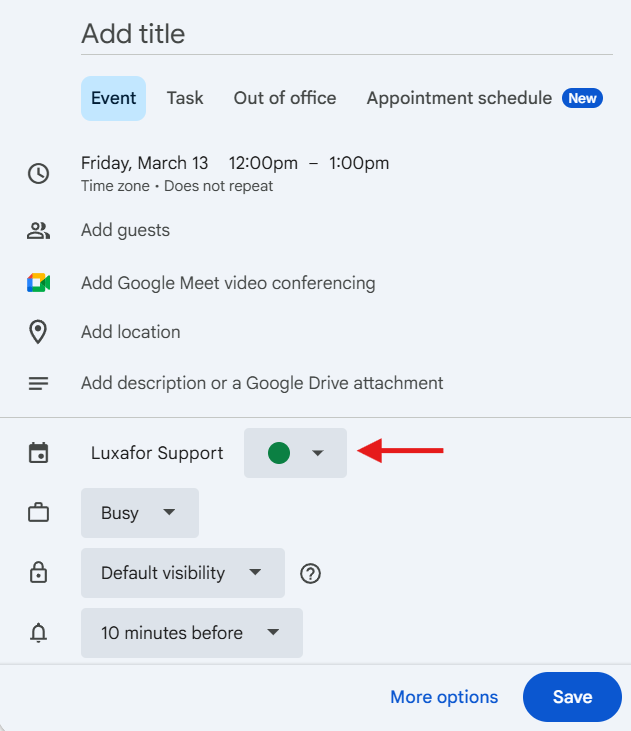
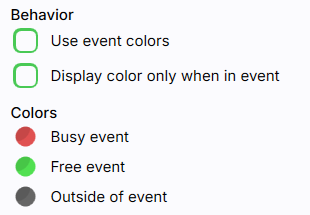
Display colors only when in event
The light will display the colors set for Busy, Free, and Outside of event. Click the colored circle next to each setting to select your preferred color. To use ’Outside of event’ option, uncheck ’Display colors only when in event’
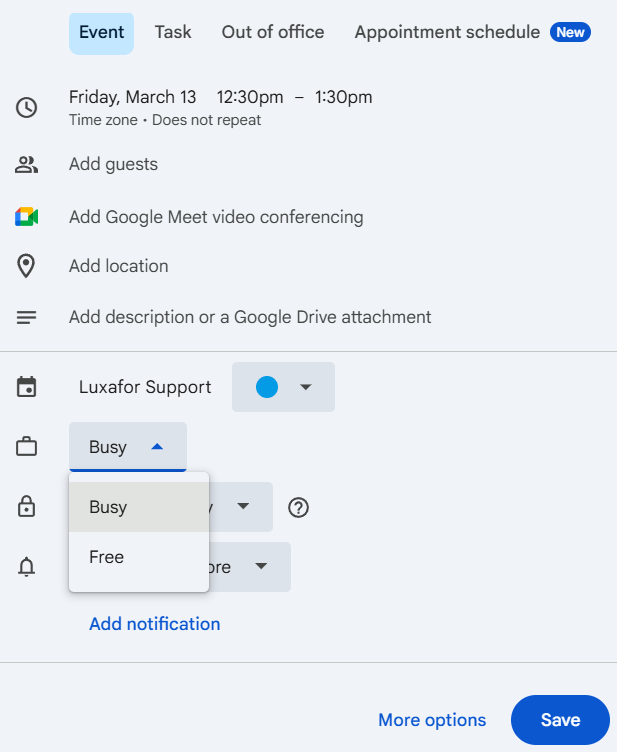
You can configure each event as a busy or free event directly in Google Calendar when creating the event.
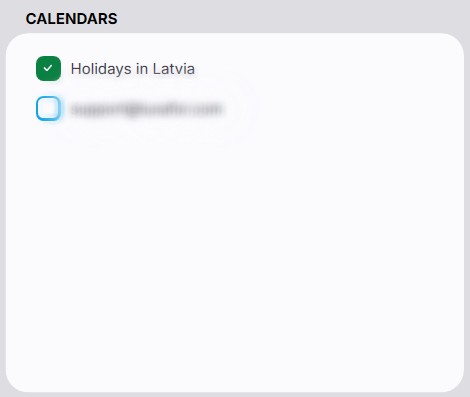
Calendars
Choose which calendars you want the Luxafor light to reflect events from.